Canvas Print Info

Wrap Thickness and Canvas Quality

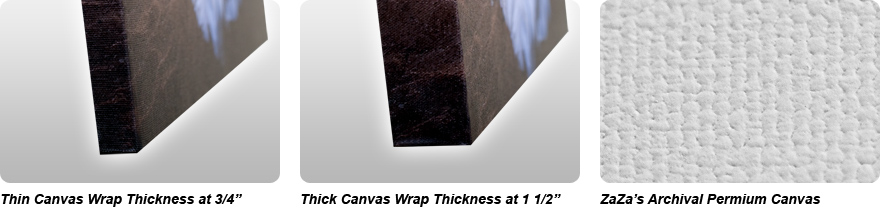
The production of your picture on canvas starts with the finest materials the industry has to offer. The stretcher bar we use is 3/4 of an inch thick (1 1/2 inch optional). The canvas we use has a mild texture similar to that used by the dutch masters for portraiture. Our canvas and our inks are rated as archival. From the canvas to the ink all the way down to the sealer, we use only museum-quality products.

The end result is a beautiful canvas print with a life expectancy of 100 years under reasonable conditions.


Border Options

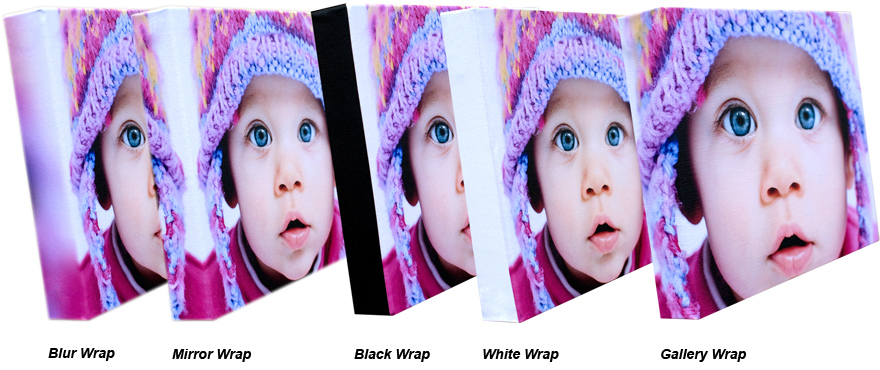
Photo Border Options: Blur Wrap, Mirror Wrap, Black Wrap, White Wrap, Gallery Wrap

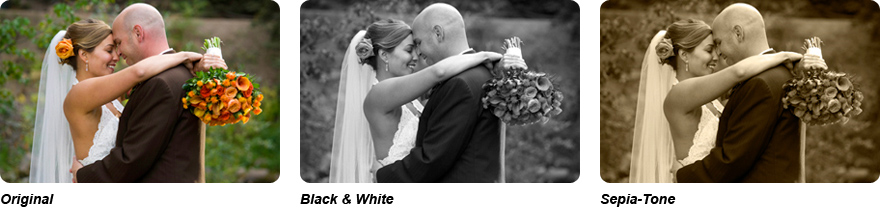
Color Stylization

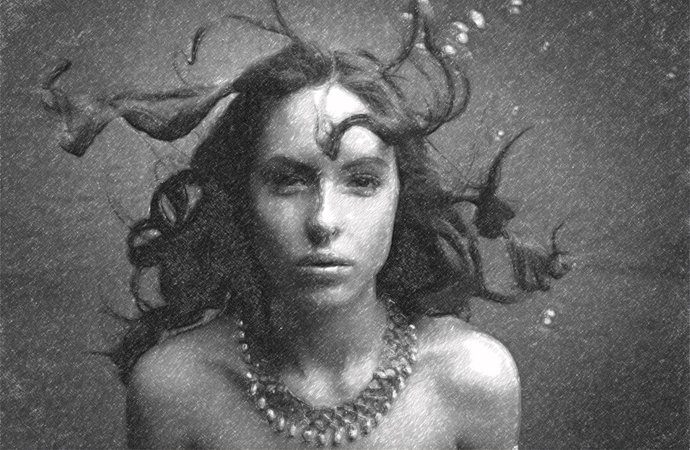
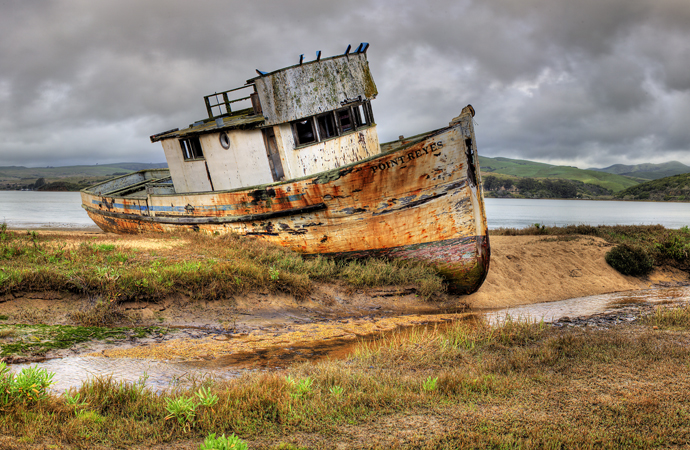
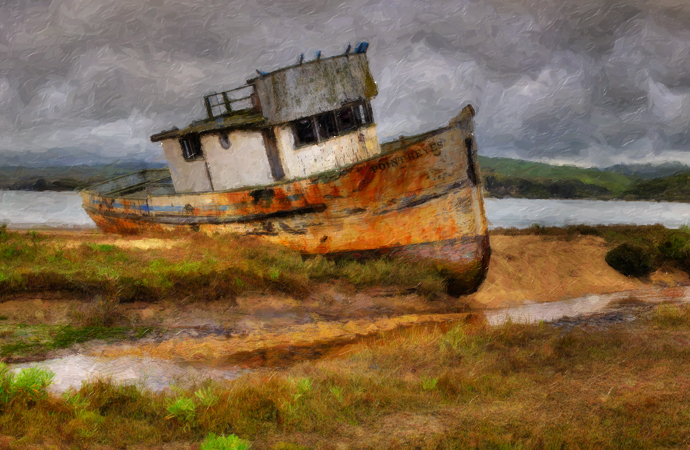
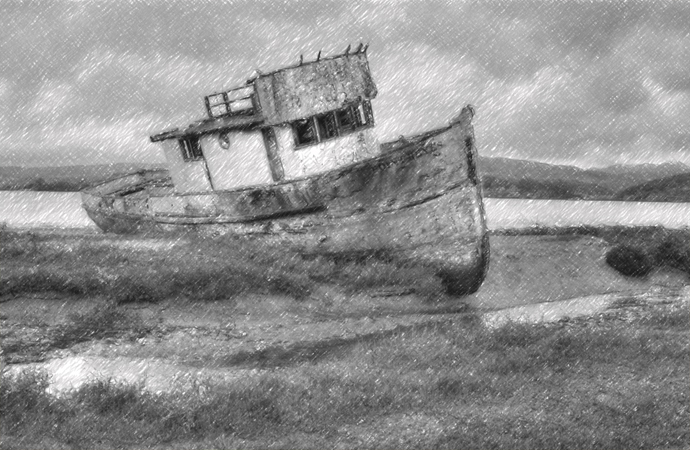
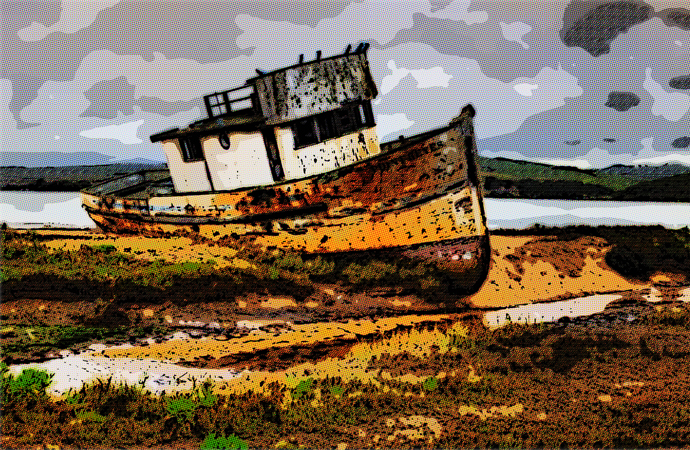
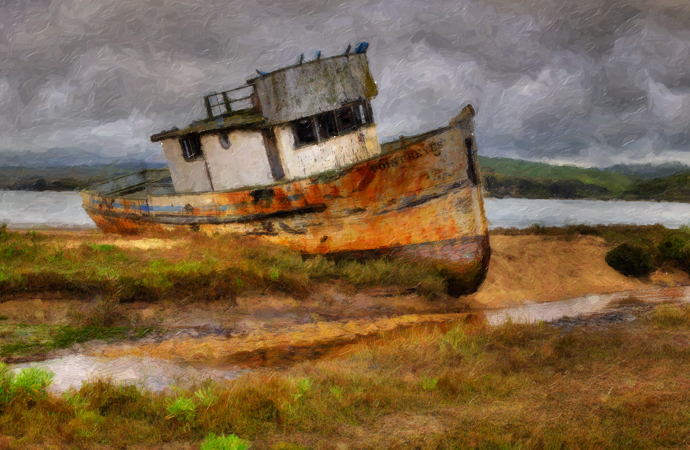
Color Stylization: Color, Black & White, Sepia-Tone

Hugh & Senta Parker

A Word from the Founders

Starting at just $25 for an 8x10 gallery wrapped photo on canvas, our prints are a tremendous value. As you may have noticed many other companies charge twice as much. Sometimes when people see a similar product for less they assume they must be getting less however here at ZaZaGallery you really are getting more. My wife [Senta Parker] and I [Hugh Parker] are photographers from Sonoma, California. We started ZaZa Gallery as an art company to put our own art work on canvas.

The fact that this company started as an outlet for our artistic expression by means of our own pictures on canvas can be a testament to you that we have left no stone unturned when it comes to the quality of this product. In addition to this it is of note that our photo canvas prints meet a museum standard for quality and are rated to last more than 100 years when displayed under reasonable conditions. A detailed explanation of this can be found by clicking how long will my photo's on canvas last.


Featured Article

Sending and Printing Full Resolution Photos Using Google?s Picasa Photo Management Application

There?s no denying that the free photo management application from Google, Picasa, can be a very user friendly and robust application. However, Picasa, by default, is configured for viewing photos on a screen, not for printing them. It doesn?t take a very high resolution photo to be clear and beautiful on a screen, but printing them is another matter entirely. Because most people aren?t sending their entire photo collection to print, Picasa isn?t set up to manage them in full size either, especially since full size images take longer to load, and are harder to email.

Without a doubt, Picasa makes emailing images easy. But when you?re sending your images to ZaZa Gallery to be printed on canvas, Picasa isn?t going to send us large enough files, by default. You?re going to have to take extra steps to ensure that the images you?re sending us are actually printable. There are three different methods we recommend for sending images when you manage your photos with Picasa.

To start with, let?s make something clear. The images you see when you open Picasa and start browsing are thumbnails, not full size photos. All they show you is a preview of a full size image that is located somewhere on your hard drive. Finding those images on your hard drive can be a challenge for people who?ve only ever used Picasa or similar applications to manage their photos. However, if you do know where your images are stored on your hard drive, when you get to ZaZa Gallery?s upload page make sure you browse to that location. This should ensure that the file you?re sending is full size.

Most people reading this article, however, are doing so because they uploaded a tiny thumbnail of an image and are going to have to now email a larger one. We don?t want to strip you of the convenience of emailing with Picasa, so here?s three ways that you can send full size images using the application.

Method 1: Configure Picasa for Large Image Emailing
Picasa allows you to email directly from the application by selecting the images you want to send and clicking ?Email? at the bottom of the screen. By default, Picasa will resample the selected images into something small and easy to send. However, you can change it so that it will send in full size.

Click Tools -> Options?
In Options, click the Email Tab

As you can see, Picasa doesn?t have a setting for sending multiple full resolution files, and even the 1600px setting isn?t recommended for printing. So, you?ll have to email one image at a time if you?re using this method. Leave the multiple image pixel slider alone, and instead look at the Size for Single Pictures setting. By default, it is set to Same as Multiple. Select Original size instead. Click OK to save this setting. Now, when using Picasa to send images, so long as you select one at a time and click Email it will send the full resolution file as it is on your hard drive.

Method 2: Locate Where Your Images are Stored and Attach Them to an Email
As mentioned at the outset, a lot of people don?t know where on their hard drives images are being stored if they?ve been using Picasa for a long time. This method allows you to locate each of your images on your hard disk, and attach them to an email.

In Picasa, find the image you want to send and Right-Click on it. This will bring up a menu. Click Locate On Disk. This opens a Windows Explorer window with the folder containing your image shown. At the top of the window is the Address Bar, which shows the path to this image. For example: C: > Users > John > Pictures > Vacation, or, C:\Users\John\Pictures\Vacation. The way this location is formatted will depend on which version of Windows you are using.

Now that you know where this image is located, you can attach it to an email. It doesn?t matter which kind of email client you?re using, whether it?s an application like Thunderbird or Outlook, or web based like Yahoo or Hotmail. The method is the same. Compose an email to zazagallery@gmail.com. Click the button to attach a file, which usually looks like a paperclip. This will bring up a browser box. You may have to click Browse in this window. Now, navigate to the location of the image you want to send, select it, and click OK. This will attach it to your email. You can repeat this as many times as you need, but remember that if you?re sending a lot of very large files your email client may not let you send them all together.


Method 3: Copy and Paste Image Locations

Method 3 is similar to method 2, but doesn?t require that you navigate to the location of your images. In Picasa, Right-Click on the image you want to send. Click Copy Full Path. In your email client, click the button to attach an image. In the Browse window, there should be an input box. Click to activate your typing cursor in this box, hold down the Ctrl button and tap the V button (this can also be expressed as Ctrl+V). This will Paste the location of your image into the box. Click OK. You can repeat this as many times as you need, but remember that if you?re sending a lot of very large files your email client may not let you send them all together.

What Customers Say

Image

“Hi Hugh,
Just wanted to let you know that the canvas print arrived today. Thank you very much!
Everything was solid: the packaging was sound, the canvas was secure, and it looks gorgeous. I’ll send you a picture of what it looks like hanging on the wall soon.
Thanks very much!”

E. B. | Georgia | 2009

Read More Testimonials

VISA | MASTER CARD | PAY PAL